Appearance
Module 1 · First launch
Leer en español: Módulo 1 · Primer arranque.
Goal: sign in to the dashboard with your email and password and understand, at a glance, what the owner dashboard is telling you. Time: ~5 minutes · You need: your dashboard URL and your user (the email you were invited or set up with).
🖱️ Would you rather practice by clicking?
This academy has a button-by-button interactive guide: you press each button of the product (in a safe simulation) and it tells you right away what it does and what to expect. Further down you will see an embedded preview of the sign-in screen.
1. What we hand you when your account is activated
When your agency (tenant) is provisioned your user is created: you sign in with your email and password. Each person on your team has their own (they are invited in Module 11). Your organization may have two-step verification (MFA) or single sign-on (SSO) required: that is not turned on from the console, the platform turns it on at your account’s request. Module 12 explains how to turn on your own second factor and how an administrator sets up SSO.
- API keys (
dd_...) no longer open the dashboard: they are for integrations (your portfolio system, reports), which connect with them. - If you forgot your password, use Forgot password? on the sign-in screen: a link to choose a new one arrives by email.
2. Sign in
Open the dashboard and type your email and password:
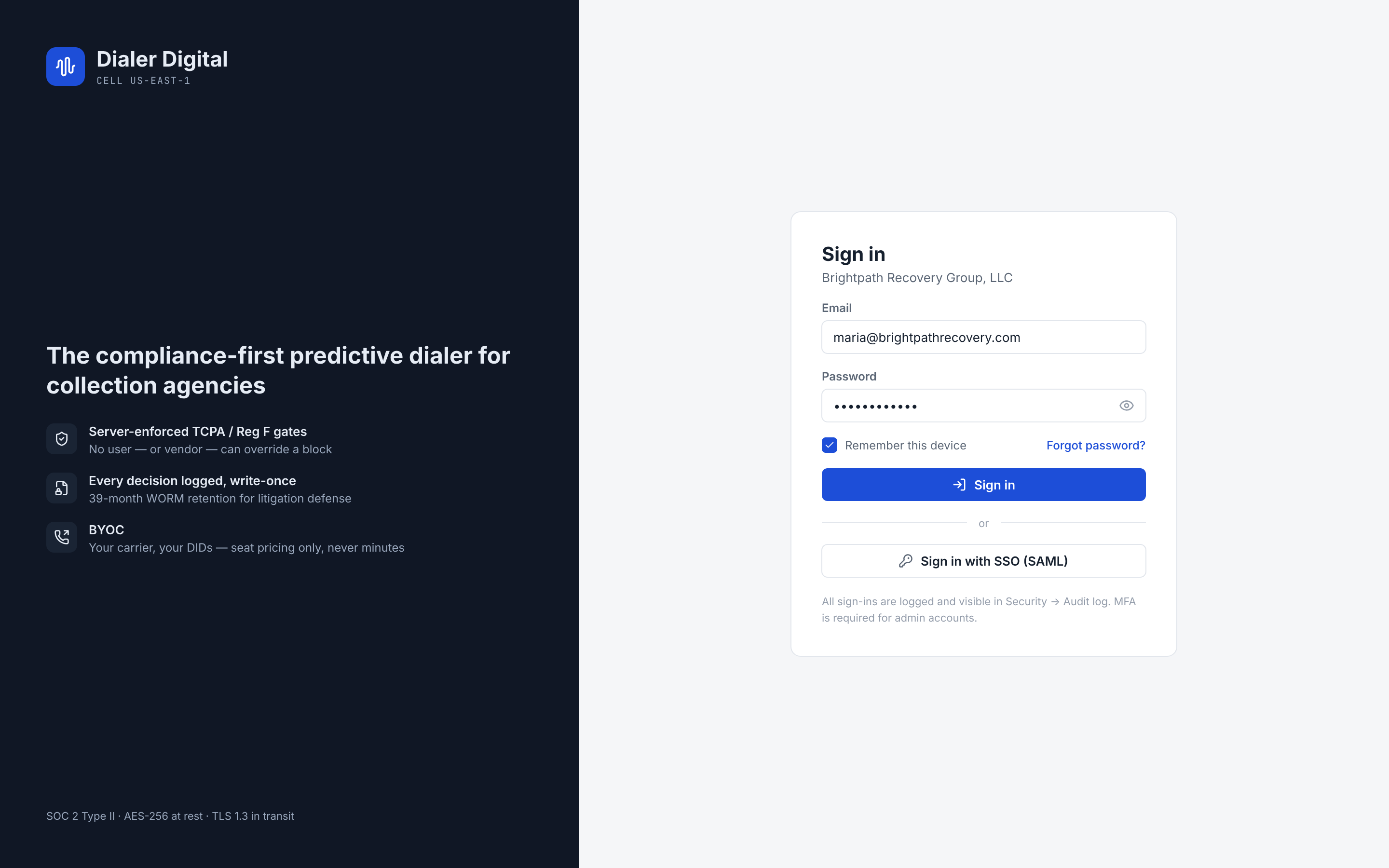
- Type your email and password (the button on the password field shows it so you can check you typed it right).
- Click Sign in. If your account uses two-step verification, the screen changes to a second step where you type the code from your authenticator app (or a recovery code).
- If your organization signs in through its identity provider, use Sign in with SSO (SAML) with the organization ID whoever manages your account gives you; a password will not get you in.
- If the notice says the email and password do not match an account, check both or use Forgot password?. After several failed attempts the screen asks you to wait a minute.
Try it here — press each button of the sign-in screen:
Sign-in screen (interactive preview)
Press each button to see what it does.👆 Press a button to see what it does and what you should expect.
3. Your first look: the owner dashboard
When you sign in you land on the dashboard:
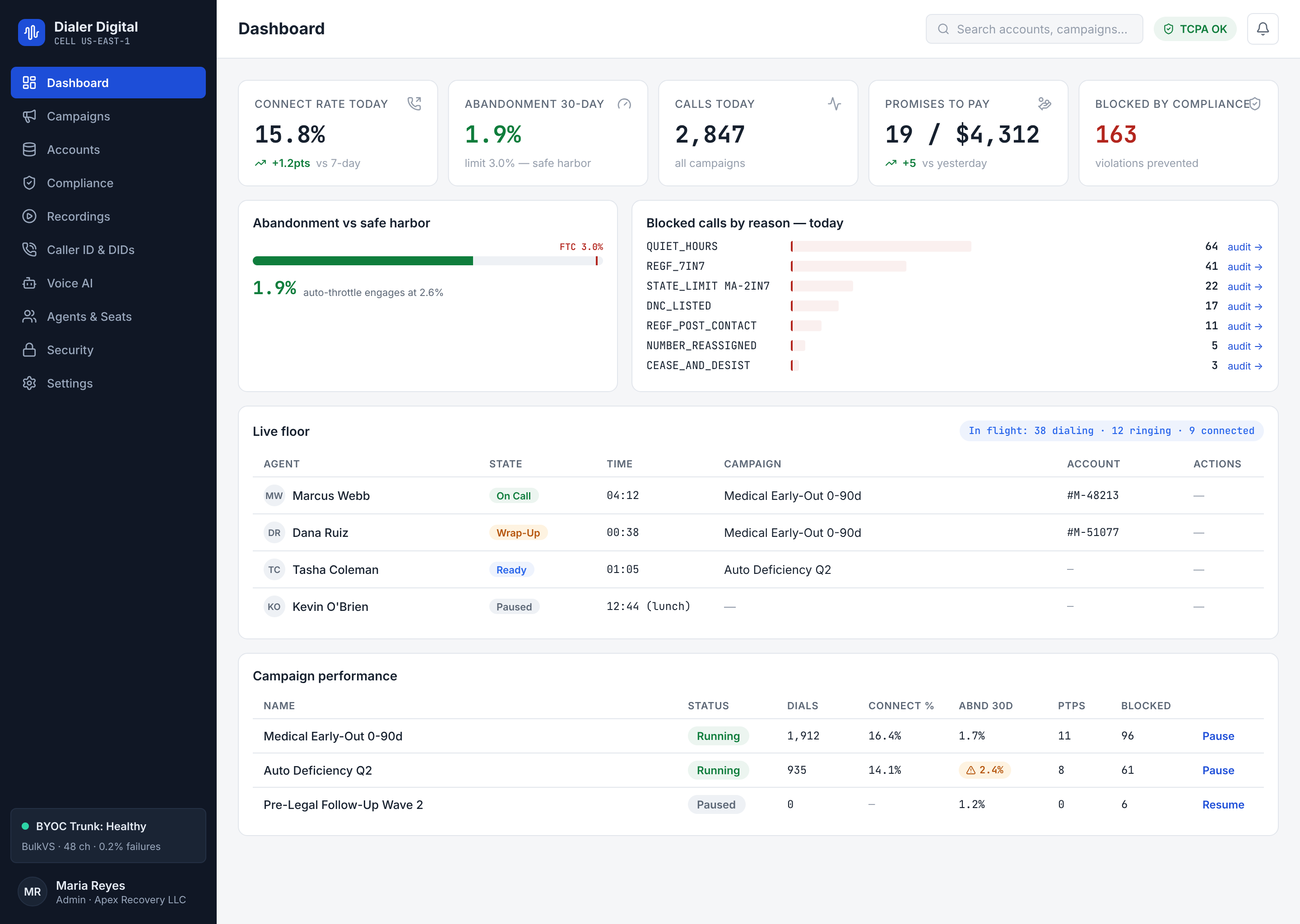
Read it in this order:
- KPI cards (top row): today's calls, connect rate, live abandonment and promises to pay. "Today" is computed as a UTC day — it is truth you can rebuild from the call record, not a cache.
- The abandonment bar against 3%: the card and the gauge read "Live abandonment — worst campaign": they show the worst campaign of the moment, with its name, over the dialing session in progress; the aggregate of all campaigns is a secondary line. It is not the figure the rules measure — that is card 3 below. It is the brake: the dialer slows down on its own before it nears the ceiling. In Module 3 you will see why that 3% is locked and cannot be edited.
- Abandonment — 30 days per campaign: the rate the rules measure (the FCC's 3% and the FTC safe harbor). It goes per campaign, in 30-day periods from its first call, over the calls a person answered (detected answering machines do not count). Abandoned is the person no agent picked up, or the AI call that dropped with nobody on the line; a recorded message or a conversation with the AI is not. If a campaign is over 3% in its current period, its row shows a red "over 3%" label. The CSV button downloads the record of all its periods, with its SHA-256 fingerprint: keep it, it is the record the rules ask you to retain.
- The live floor: each call appears and changes state on its own — originated, answered, bridged, ended. There is no "refresh" button: the dashboard receives the events by push the moment they happen.
Numbers are masked
On the live floor, phone numbers and account references are masked to the last 4 digits (***1001). The live stream never carries a full number — you can put the dashboard on a screen on the floor without giving away consumer data.
The full path to the first shift
The dashboard shows the Getting started checklist with five steps; this is the path with the module for each:
- SIP Trunks & DIDs: your trunk or number (Module 13 if you bring your own trunk).
- Contact Lists: upload your portfolio (Module 2).
- Active campaign: (Module 3).
- Seat with a user: a seat (Module 19) and a console user (Module 11) with the same email. Without that link the agent cannot check in to take calls. The step's button, Link seat and user, takes you to the Seat Roster if there is no active seat yet and to Console users if there is.
- First shift: the agent goes to Take calls (Module 20).
If your account is a demo account
A demo account (tenant.synthetic) shows a fixed strip under the top bar: "Demo account: the data is sample data and no real traffic is originated", with a See the guide link. It cannot be dismissed. That account never originates calls, so it cannot activate a campaign: in the getting-started checklist the Active campaign step says "A demo account never originates calls: this step cannot be completed here.", and in the campaign wizard the Activate campaign button is disabled with "This is a demo account and it never originates calls: the campaign stays a draft." You can create campaigns and leave them as drafts to learn the console; dialing for real needs a real account.
4. Protect your password and your keys
- If your organization has single session turned on (the platform turns it on; it is off by default), signing in from another device or browser ends the earlier session and the sign-in screen tells you so. Without Remember this device, the session dies when you close the tab (the recommended setting on shared machines).
- The session expires on its own after a fixed time; when it does, the dashboard sends you back to sign-in.
- API keys belong to integrations: the platform only stores their fingerprint (hash) — not even support can "recover it for you". If one is lost, a new one is issued and the old one is revoked; revocation cuts that integration's access immediately.
- One key per use (portfolio integration, reports) means revoking one does not take down the others.
Test yourself
- What do you need to sign in to the dashboard: your email and password, or an API key?
***1002shows up on the live floor. Can you see the full number from the dashboard?- You sign in to the dashboard from a second browser with the same user. What happens to the first session?
Answers
- Your email and password (with a second step if your account has MFA), or SSO if your organization uses it. API keys are for integrations.
- No. The live stream always masks to the last 4; the full number only exists in the call record, behind authenticated access.
- It depends on your organization: with single session turned on, it ends, and when you reopen the first one the sign-in screen tells you that you signed in on another device; without it (the default), both stay open.