Appearance
Module 2 · Import your portfolio
Leer en español: Módulo 2 · Importa tu cartera.
Goal: upload your accounts CSV, map the columns, read the E.164 phone report and understand the dedupe — without duplicating or losing records. Time: ~10 minutes · Before: Module 1.
Your portfolio lives in the CMS or in the Excel file your client sent you. Here we turn it into dialable accounts, with the right keys so that compliance counts correctly from day one.
1. Open Debts and drop your file
Go to Debts and drag your CSV onto the upload area:
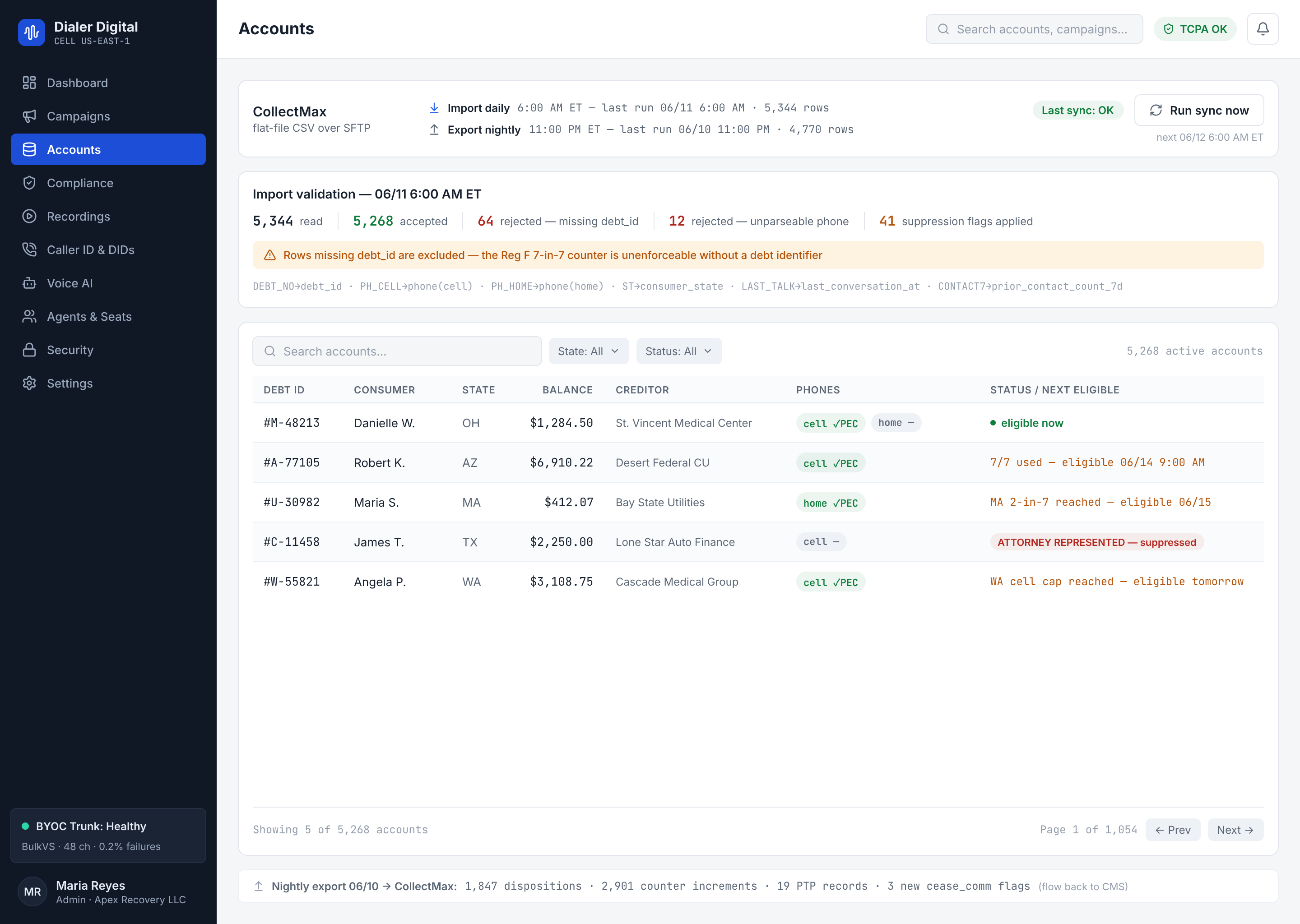
The CSV works exactly as it comes out of Excel (accents, commas inside quotes, BOM — all of that is tolerated). If a row has more or fewer columns than the header, the mapper reports it to you instead of silently misaligning data.
2. The mapper: tell it what each column is
The system reads your headers and the first rows, and proposes the mapping. You confirm or correct it:
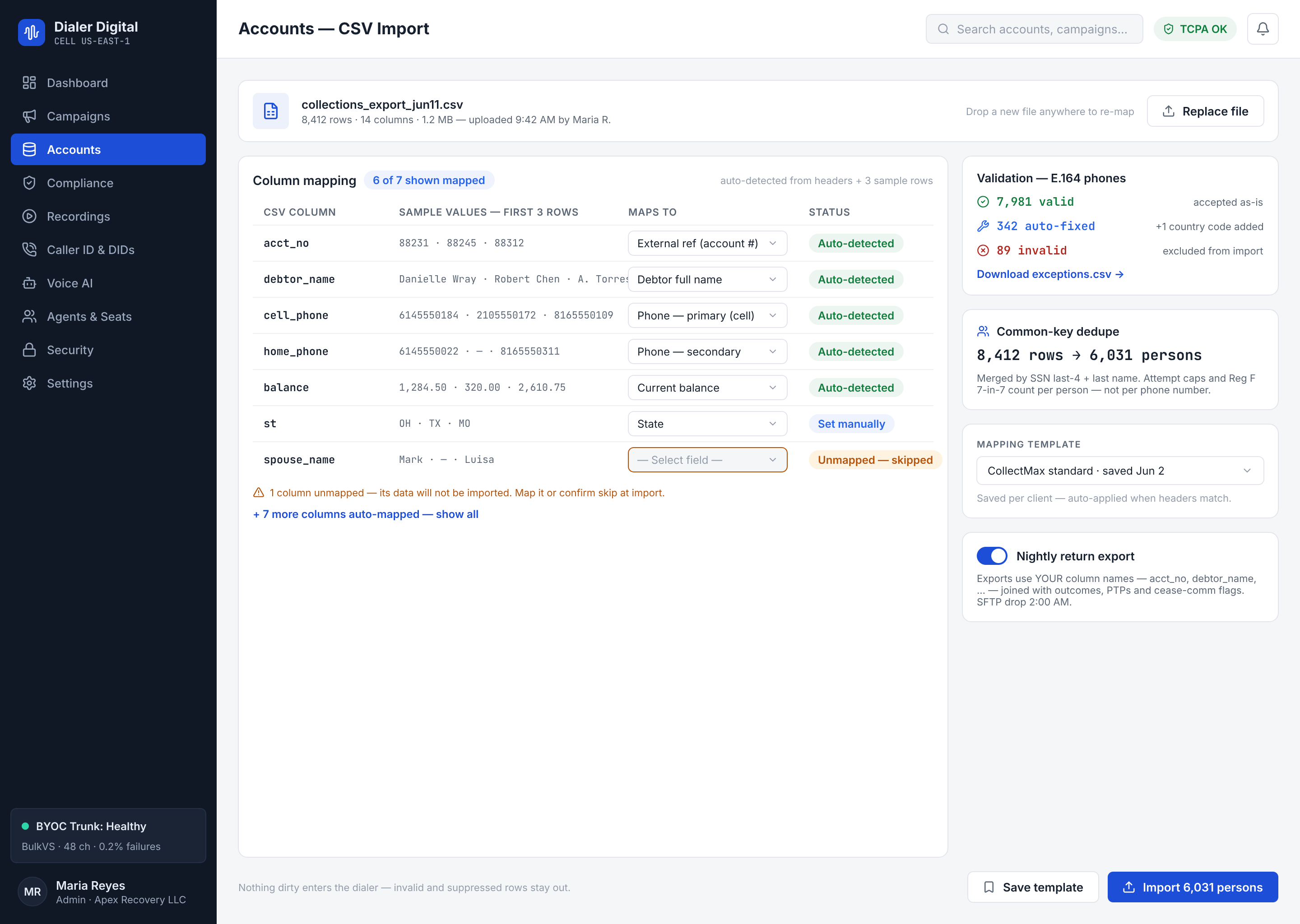
The targets that really matter:
| Target column | What it is | Why it matters |
|---|---|---|
| External ref (account number) | The unique key of the debt. | It is the Reg F key: the 7-in-7 counter counts by this reference. If you change it between imports, you duplicate accounts and break the counters. |
| Consumer ref | The key of the person. | Penetration analytics deduplicate per person with this key. If you do not map it, each account counts as a different person (1 account = 1 person, explicit policy). |
| Primary / secondary phone | The numbers to dial. | They go through E.164 validation (step 3). |
| Line type, state, city, time zone | Contact data. | The compliance gates use them (the consumer's local hours, state rules). |
| Balance, currency, debt type | Account data. | What your collectors and your reports see. |
"Debtor name" appears disabled
The Debtor full name target is shown with a pending chip: the current version does not store names yet, so that value is not sent (instead of pretending it was saved). Map it once the field exists.
Do you import the same format every month? Save the mapping as a template — it is reapplied on its own when the system recognizes the same headers. Templates are saved on the server, so your whole team and every browser see the same ones; editing a template keeps its earlier versions, and the import records which version it used. The templates your browser kept before are offered for a one-time move to the server.
3. The E.164 report: phones that actually dial
Before importing, every phone is checked against the international E.164 format (+13125551001). The report splits three piles:
- Valid — they go in as they are.
- Repaired — the system was able to normalize them (for example
(312) 555-1001→+13125551001). Review the sample; they go in already normalized. - Invalid — they cannot be dialed. They do not block the import: download the
exceptions.csv, fix them with your client and re-import only those.
Spreadsheet safety: in the exceptions.csv and in the rejected-rows CSV, a cell that starts with =, +, -, @, a tab, a carriage return, a line feed, or the full-width =, +, -, @ is neutralised: it is delivered with a ' in front, so Excel or Sheets show it as text and never run it as a formula. The prefix is part of the cell: strip it before you re-import.
The engine requires E.164 at the database level: a malformed phone cannot get in. Better to find out here, with an exceptions CSV in hand, than to waste attempts on the floor.
4. The dedupe view: rows → accounts → people
Before the final button you see the summary: how many rows the file has, how many accounts they group into (by external ref) and how many people they are (by consumer ref).
- The import is idempotent: accounts are updated by external ref and phones by number. Re-importing the same file duplicates nothing — it updates.
- That is why the same file twice = the same numbers in the preview. If the "accounts" count does not add up for you, it is almost always a badly mapped external ref column.
5. Import
Click Import. The file uploads in chunks and the result is record by record: if 3 rows out of 5,000 are bad, 4,997 go in and the 3 failed ones are reported with their row number and reason — no blind "all or nothing".
6. Hand the return back to your system
The portfolio comes in through Debts, and the result of the work goes out the same way. The Attempt return card is always visible — no file needs to be loaded — and downloads the attempt history for a date range to hand back to your system:
- Pick the range with from and to. Days are UTC, and the end date can be at most 31 days after the start date; a longer range is flagged on screen and never requested.
- Click Export CSV. The file carries one row per attempt with its final outcome, every campaign included.
- If anything fails along the way — you cancel, the server refuses the range or the download does not arrive intact — no file is downloaded. You never end up with a half CSV that looks whole.
The same protection applies to this file: a cell that starts with =, +, -, @, a tab, a carriage return, a line feed, or the full-width =, +, -, @ is neutralised too and comes out with a ' in front.
The automatic SFTP send does not exist yet
Below it you will see Scheduled nightly send over SFTP with its checkbox disabled and the not available yet chip: shown disabled, not faked. Meanwhile, the return is downloaded by hand by date range.
7. Find an account from any screen
When a debtor calls or writes, you need their account in seconds, from wherever you are. The global search in the top bar gets you there without going through the Debts list. It sits at the top of every screen and answers to / (or Ctrl/Cmd+K). The / is a single-key shortcut and each agent can turn it off in Settings → Keyboard shortcuts (“Single-key shortcuts (1–9 and 0 in the wrap-up, / for search)”; it is saved per agent, in that browser). With the setting off, Alt+/ still focuses the search: it always works.
- It searches accounts only. Phone-shaped text (normalized to E.164) queries by
phone; anything else queries byconsumer_refand byexternal_ref. It does not search by debtor name: the platform does not offer that search and the bar does not invent it. - It starts at 3 characters. Below that it asks the platform nothing; from there, with a short delay as you type, it returns at most 10 results, deduplicated by account.
- Enter or a click opens that account's detail.
- Honest states. Loading, no results and a platform error are each shown as what they are; a platform failure reads as an error, never as an empty list that looks like "nothing here".
The search respects your key's scope: it only sees the accounts your seat and tenant can already see in the list.
Test yourself
- Which column feeds the Reg F 7-in-7 counter: the consumer ref or the external ref?
- Your file has 40 invalid phones. Does the import fail?
- You re-import yesterday's full CSV. How many new accounts are created?
Answers
- The external ref (account number): Reg F counts per debt. The consumer ref groups by person for analytics.
- No. It imports what is valid and gives you an
exceptions.csvwith the 40 to fix and re-import. - Zero. The import is idempotent: it updates by external ref / phone, it does not duplicate.